
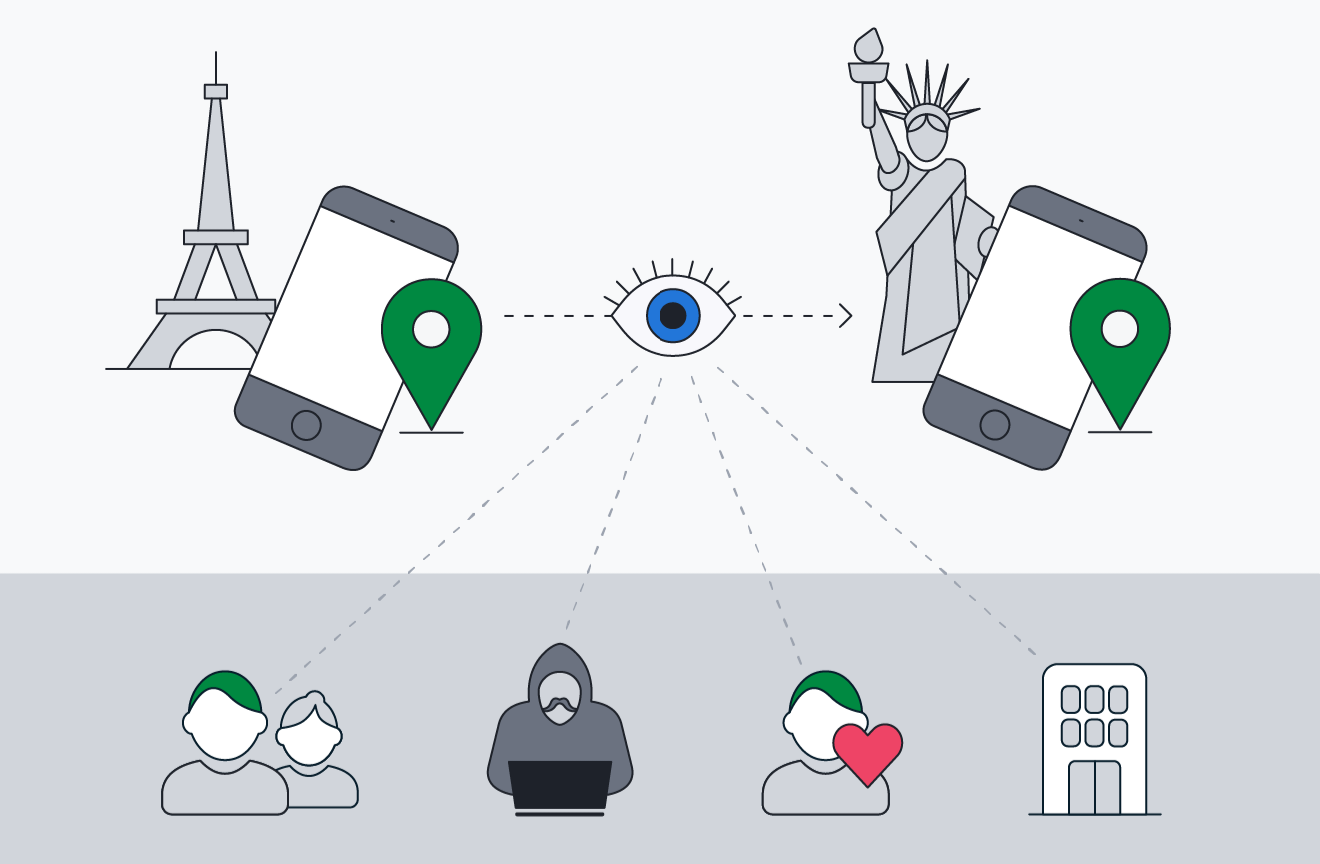
Many people share their location with family members, friends, or coworkers for safety and convenience. However, there may come a time when you no longer want someone to know where you are. You may also suspect that someone is tracking your iPhone without your permission.
If you want to stop someone from tracking your iPhone without notifying them, there are several privacy settings you can review. Apple provides built in tools that let you control who can see your location, which apps have access to it, and how your personal information is shared.
This guide explains how iPhone location tracking works, how to check your privacy settings, and what you can do to protect your location. The steps are suitable for beginners and work on most recent versions of iOS.
How iPhone location tracking works
An iPhone can share your location in several ways. Knowing how these methods work makes it easier to manage your privacy.
Your location may be shared through:
- Find My
- Family Sharing
- Individual location sharing with contacts
- Apps that have location permission
- Significant Locations
- Photos that contain location data
- Bluetooth and nearby device features
Not every form of tracking is unwanted. Many people choose to share their location with trusted contacts. The important part is making sure only the people and apps you trust have access.
Can someone track your iPhone without your permission?
In most situations, Apple requires your permission before someone can track your location.
For example, someone usually needs you to accept a Find My sharing request or enable Family Sharing before they can view your location.
However, if someone knows your Apple Account password or has physical access to your phone, they may change settings without your knowledge. This is why it is important to protect your device with a strong passcode and enable two factor authentication.
How to check if your location is being shared
The first step is to see whether your location is currently shared with anyone.
Open the Find My app.
Tap the People tab.
You will see a list of people who can view your location and anyone whose location you can see.
If you recognize everyone on the list and intentionally shared your location, there may be nothing to worry about.
If you notice an unfamiliar name or someone you no longer want to share with, you can stop sharing.
Stop sharing your location with one person
If you only want to stop one person from seeing your location, you can do it without affecting anyone else.
Follow these steps:
- Open the Find My app.
- Tap People.
- Select the person’s name.
- Tap Stop Sharing My Location.
Once you stop sharing, the other person can no longer view your current location.
Turn off location sharing for everyone
If you prefer not to share your location with anyone, you can disable location sharing completely.
To do this:
- Open Settings.
- Tap your Apple Account name.
- Tap Find My.
- Turn off Share My Location.
After this setting is disabled, nobody will be able to see your live location through Apple’s location sharing features.
Review Family Sharing settings
Family Sharing lets family members share purchases, subscriptions, and locations.
If you belong to a Family Sharing group, your location may be shared automatically depending on your settings.
To review this:
- Open Settings.
- Tap your Apple Account.
- Tap Family.
- Check whether location sharing is enabled.
You can disable location sharing while remaining in the family group if you prefer.
Check which apps can access your location
Many apps request access to your location.
Some apps need it to function correctly, such as maps or weather apps.
Others may not require constant access.
To review app permissions:
- Open Settings.
- Tap Privacy and Security.
- Tap Location Services.
You will see every app that has requested location access.
Each app can usually be set to:
- Never
- Ask Next Time
- While Using the App
- Always
Choose the setting that matches your privacy needs.
For most apps, While Using the App provides a good balance between privacy and functionality.
Disable precise location
Some apps only need your general area instead of your exact location.
Apple allows you to disable Precise Location for individual apps.
To do this:
- Open Settings.
- Tap Privacy and Security.
- Tap Location Services.
- Select an app.
- Turn off Precise Location.
The app will receive an approximate location instead of your exact position.
Review Significant Locations
Your iPhone can store a history of places you frequently visit.
Apple calls this feature Significant Locations.
The information is encrypted and designed to improve certain services.
If you do not want your device to remember these places, you can disable the feature.
Go to:
- Settings
- Privacy and Security
- Location Services
- System Services
- Significant Locations
You may need to authenticate using Face ID, Touch ID, or your passcode.
From there, you can turn the feature off and clear any stored history.
Check Bluetooth permissions
Bluetooth does more than connect wireless headphones.
Some apps use Bluetooth to detect nearby devices or improve location based features.
To review Bluetooth permissions:
- Open Settings.
- Tap Privacy and Security.
- Tap Bluetooth.
Disable access for apps that do not need Bluetooth.
Review app tracking permissions
Apple also allows you to control app tracking across different apps and websites.
Although this does not directly affect GPS location sharing, it can reduce how apps collect personal information.
To review these settings:
- Open Settings.
- Tap Privacy and Security.
- Tap Tracking.
Turn off tracking for apps you do not trust.
Remove location information from photos
Photos taken with an iPhone may include location information.
If you send these photos to someone, the location data may also be shared unless removed.
Before sharing a photo:
- Open the Photos app.
- Select the photo.
- Tap Share.
- Tap Options.
- Turn off Location.
Then share the photo.
This removes location information from that shared copy.
Protect your Apple Account
Your Apple Account controls many important privacy settings.
If another person knows your password, they could change settings or view personal information.
To improve security:
- Use a strong password.
- Enable two factor authentication.
- Never share your verification codes.
- Review trusted devices regularly.
- Remove unfamiliar devices.
You can check trusted devices by opening Settings, tapping your Apple Account, and reviewing the device list.
Check for unknown AirTags or Find My accessories
Apple provides alerts if an unknown AirTag or compatible Find My accessory appears to be moving with you.
If you receive such an alert:
- Follow the instructions on your iPhone.
- View information about the device.
- Play a sound if available.
- Disable the accessory if necessary.
These alerts help reduce unwanted tracking through Apple’s Find My network.
Restart your iPhone after changing settings
After updating your privacy settings, restarting your iPhone is a good idea.
This refreshes system processes and ensures recent changes are applied correctly.
Simply turn your iPhone off and back on.
Update your iPhone regularly
Apple frequently releases security updates that improve privacy and fix vulnerabilities.
Keeping your iPhone updated helps protect your information.
To check for updates:
- Open Settings.
- Tap General.
- Tap Software Update.
Install any available updates.
Signs that someone may have access to your location
Several signs could suggest someone knows your location.
These include:
- They know where you are without being told.
- You receive unexpected Find My notifications.
- You notice unfamiliar people listed in Find My.
- Your Apple Account shows unknown trusted devices.
- Your location appears to be shared when you did not enable it.
These signs do not always mean someone is tracking you, but they are worth checking.
Should you disable Location Services completely?
Turning off Location Services stops many apps from using your location.
However, it also limits useful features such as:
- Navigation
- Weather forecasts
- Emergency location services
- Nearby search results
Instead of disabling everything, many people prefer adjusting permissions for individual apps.
This provides better privacy while keeping important features available.
Conclusion
Your iPhone includes several privacy tools that let you control who can access your location. By reviewing Find My, Family Sharing, app permissions, Bluetooth access, and Apple Account security, you can reduce unwanted location sharing and better protect your personal information.
Frequently Asked Questions
Can someone track my iPhone if Location Services are turned off?
Most apps cannot access your location when Location Services are disabled. However, some network based information may still be available for essential device functions.
Will someone know if I stop sharing my location?
Apple does not send a direct notification when you stop sharing your location. However, the person may notice that your location is no longer available if they check the Find My app.
How do I know if someone is tracking my iPhone?
Check the Find My app, review your Apple Account devices, inspect location sharing settings, and confirm that only trusted apps have permission to access your location.
Can I hide my location from one person only?
Yes. You can stop sharing your location with a specific person in the Find My app while continuing to share it with others.
Should I turn off Location Services for every app?
Not necessarily. Many apps need location access to work correctly. It is usually better to allow access only for trusted apps and only while you are using them.
???? Stay Empowered with ZOEEB
Join our community for daily updates on jobs, skills, and financial growth opportunities.