
CDCFIB Recruitment 2025 Upload Errors? How to Fix Registration Problems and Successfully Submit Your Application
Thousands of Nigerians are currently applying for the Civil Defence, Correctional, Fire and Immigration Services Board (CDCFIB) Recruitment 2025 exercise.
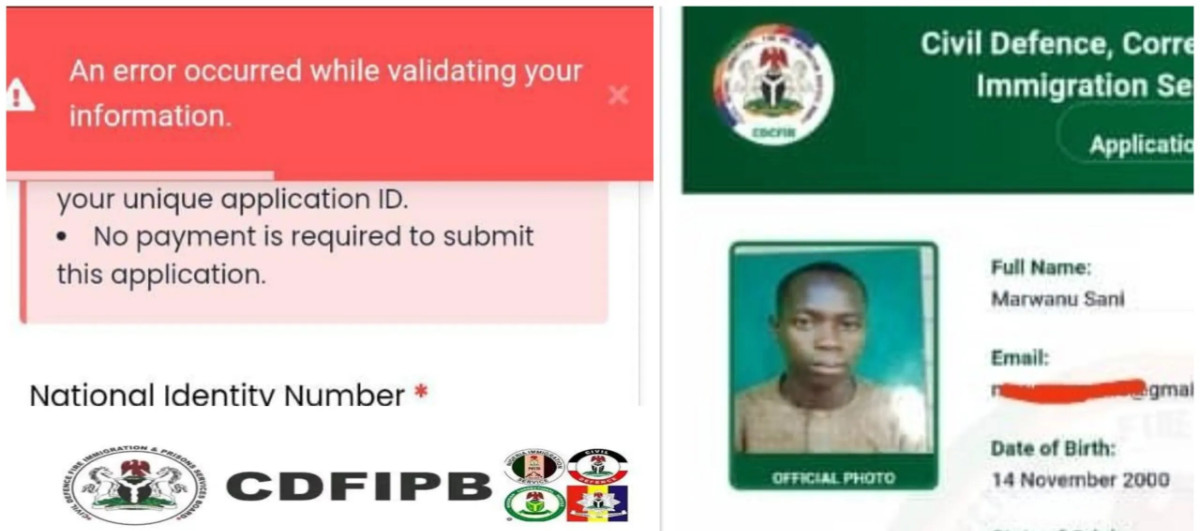
While many applicants have successfully submitted their applications, others have reported experiencing various challenges on the recruitment portal, including document upload failures, validation errors, NYSC certificate issues, missing local government options, and login problems.
If you are facing any of these issues, don’t panic.
This guide explains the common CDCFIB portal errors, why they occur, and practical steps you can take to successfully complete your application before the deadline.
Common CDCFIB Recruitment Portal Errors
Some of the most frequently reported issues include:
- Documents failing to upload
- “Document not validated” error messages
- NYSC certificate validation problems
- Missing Local Government Area (LGA) options
- Registration errors when entering phone numbers
- Inability to log in after registration
- Slow portal response or portal crashes
- Failure to receive confirmation after submission
Fortunately, most of these issues can be resolved without starting a new application.
Step 1: Prepare Your Documents Properly
Before visiting the portal, ensure all your required documents are ready and properly formatted.
Documents You May Need
Depending on the cadre you are applying for, prepare:
- Birth Certificate or Declaration of Age
- National Identification Number (NIN) Slip
- Local Government Identification Letter
- WAEC, NECO, NABTEB or equivalent certificate
- NCE, OND, HND, Bachelor’s Degree or higher qualifications (where applicable)
- NYSC Certificate (for graduates)
- Passport Photograph
Important File Requirements
Many upload errors occur because applicants ignore the portal’s file specifications.
To avoid problems:
- Save documents in JPEG or PNG format
- Ensure each file is not more than 350KB
- Use clear and readable scanned copies
- Avoid blurry photographs of documents
If your files exceed the permitted size, use image compression tools to reduce them before uploading.
Step 2: Use the Right Browser
The CDCFIB portal may not perform equally well across all devices and browsers.
For better results, use:
- Google Chrome
- Mozilla Firefox
- Brave Browser
- Microsoft Edge
- UC Browser (for mobile users)
Before accessing the portal:
- Clear your browser cache
- Remove stored cookies
- Close unnecessary browser tabs
- Ensure you have a stable internet connection
These simple steps can resolve many validation and loading issues.
Step 3: Apply During Off-Peak Hours
Because thousands of applicants access the portal daily, heavy traffic can slow down the system or cause temporary failures.
If possible, complete your application during off-peak hours such as:
- Late night (10 PM – 6 AM)
- Early morning hours
Many applicants have reported better success rates during periods of lower traffic.
Step 4: Fix Registration Errors
Some applicants encounter errors while creating accounts.
Phone Number Error
If the portal displays:
“An error occurred”
during registration, the issue may be related to the phone number entered.
Try:
- Re-entering the number carefully
- Using an alternative phone number
- Refreshing the page and trying again
Email Address Issues
Always use an active email address because CDCFIB may send important notifications and application updates to your inbox.
Check your Spam and Promotions folders if you do not receive emails immediately.
Step 5: Save Your Application Number
After creating your account, the portal generates an application number or application code.
Do not ignore this information.
Your application code is important because you may need it to:
- Log into your dashboard
- Track your application status
- Recover your account
- Print acknowledgement slips
Take a screenshot and keep a written copy for future reference.
Step 6: NYSC Certificate Validation Error – What Applicants Should Know
One of the most common complaints from graduate applicants involves the NYSC certificate section.
Some candidates report that the portal freezes or displays validation errors when they attempt to enter their NYSC certificate number.
According to information shared with applicants, affected candidates may proceed with the remaining sections of the application if the portal allows them to continue.
Applicants are advised not to submit false information and to ensure all other details are entered correctly.
Step 7: Missing Local Government Area (LGA) Options
Some applicants have reported that their Local Government Areas do not appear in the dropdown menu.
If this happens:
- Refresh the page
- Try another browser
- Return later and check again
In many cases, missing options are caused by temporary portal updates or technical issues.
If the problem persists, continue monitoring official CDCFIB announcements for updates.
Step 8: How to Fix Document Upload Errors
This is currently the biggest challenge faced by many applicants.
Error: “Document Not Validated”
If you receive this message:
- Reduce the file size further
- Rename the file using simple letters and numbers
- Convert the file to JPEG or PNG format
- Clear browser cache
- Use another browser
Error: “Validation Failed”
Try the following:
- Log out and log back in
- Switch to another device
- Upload one document at a time
- Ensure internet connectivity is stable
Passport Photograph Refuses to Upload
Check that:
- The image is clear
- The background is plain
- The file size is below the portal limit
- The image format is accepted by the system
Step 9: Review Your Application Carefully
Before clicking the final submit button, review every section carefully.
Check:
- Name spelling
- Date of birth
- NIN details
- Educational qualifications
- Uploaded documents
- Selected agency and cadre
Remember that mistakes may be difficult or impossible to correct after submission.
Step 10: Submit and Print Your Acknowledgement Slip
After successful submission:
- Download your acknowledgement slip
- Save a digital copy
- Print a hard copy if possible
The acknowledgement slip may be required during screening, aptitude tests, or document verification stages.
How to Confirm Successful Submission
After submitting:
- Check your email inbox
- Log in to your dashboard
- Confirm that your application status shows as submitted
If you can no longer access your dashboard:
- Verify your login details
- Reset your password if necessary
- Use your application code to recover your account
Important CDCFIB Recruitment Tips
To improve your chances of a successful application:
Apply Only Once
CDCFIB has warned that multiple applications may lead to automatic disqualification.
Choose only:
- One agency
- One cadre
and submit a single application.
Do Not Pay Anyone
The recruitment process is completely free.
Avoid individuals claiming they can:
- Secure employment
- Fast-track applications
- Guarantee selection
CDCFIB does not authorize any agent to collect money from applicants.
Stay Updated Through Official Sources
Regularly check the official recruitment portal and official CDCFIB communication channels for updates regarding:
- Portal fixes
- Shortlisting
- Screening dates
- Recruitment announcements
CDCFIB Recruitment 2025 Deadline
Applicants should note that the CDCFIB recruitment portal is scheduled to close on the official deadline announced by the board.
Candidates are advised not to wait until the final day before completing their registration.
Final Thoughts
Experiencing technical difficulties during the CDCFIB Recruitment 2025 application process can be frustrating, especially when thousands of applicants are trying to access the portal at the same time.
However, most upload errors and registration issues can be resolved by using the correct file formats, reducing document sizes, switching browsers, clearing cache, and applying during periods of lower traffic.
Applicants are encouraged to remain patient, follow official instructions carefully, and ensure all information provided is accurate before submission.
Also Read
How to Recover Your CDCFIB Recruitment Application Number
CDCFIB Recruitment Screening Requirements 2025: Documents Every Applicant Must Bring
???? Stay Empowered with ZOEEB
Join our community for daily updates on jobs, skills, and financial growth opportunities.